


The OnSIP app gives busy professionals more than just a way to make and receive business calls. It brings voicemail, contact management, SMS messaging, video conferencing, and other communication tools into one easy-to-navigate interface—right on your desktop monitor, alongside the other business apps you use all day.
Whether you use our business softphone app every day or are just getting started, these eight features can help you communicate more efficiently with coworkers and customers.
What Is the OnSIP App?
The OnSIP app is a software-based business phone (also known as a softphone) included for OnSIP users. With the web browser or desktop app, users can make and receive voice and video calls, manage contacts, check voicemail, view coworker availability, send business messages, and access other calling tools directly on their computers.
The web app is available at app.onsip.com, while desktop versions are available for Mac, Windows, and Linux machines. OnSIP also offers mobile apps for iOS and Android for employees who need a full-featured business phone on their smartphone.
8 Features That Help You Get the Most Out of the OnSIP App
1. All Your Voicemails, in One Dashboard
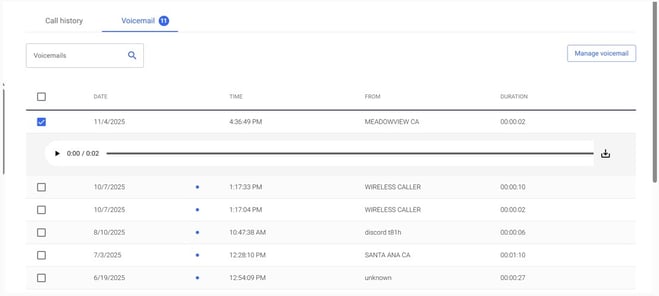
Tired of dialing into a separate voicemail system every time you miss a call? The Voicemail section of the OnSIP app organizes every message in one place, displaying useful info such as the date, time, caller ID, and message length of each voicemail.
From the app, you can play a message, download it to your device, call back a specific caller, and delete messages you no longer need. New message indicators alert you to newly left voicemails that require your attention. You can also search through your voicemails by name, phone number, or SIP address when you need to find a specific message.
2. Find Contacts by Name, Not Extension Numbers
Stop fumbling around searching for your coworkers’ extensions. Start searching by name instead. To place a call, select the Start new call button and begin typing the person's name in the call field. Choose the correct contact from the sorted results, then make a voice or video call to them by clicking on one of those call buttons.
You can also search your Contacts list on the left side of the dashboard by clicking on the magnifying glass and typing in your coworker’s name there. Click on their name to pull up their contact card. Here you’ll find voice and video call buttons for click-to-call access to them, as well as their contact information including their extension and direct phone numbers.
Firefox web browser users get an extra bonus: 3-way calling in the app. When you’re on a phone call, click on the + sign button (the Conference button) on the right side of the call handling options. You’ll be able to call a phone number or one of your contacts and merge them into your call!
3. Coworker Presence: See Who’s Free before You Dial
There's no faster way to waste time than by calling someone who's already busy. The desktop and web apps show real-time presence statuses for every contact in your organization. With a quick glance at your Contacts list, you’ll know which coworkers are available (a green indicator), already on a call (a red indicator), or set to Away (an orange indicator).
Checking presence before calling will reduce unanswered calls and unnecessary interruptions. If someone is busy, you can wait, contact another available teammate, or choose a different way to follow up.
4. One Contact List for Everyone You Call: Add Customers and Other External Contacts
Your Contacts list is not limited to employees who are in your company. You can create custom contacts for customers, vendors, family members, and other frequently called people outside your organization.
Select the Add button from your Contacts list, choose the Custom Contact option, and enter the person's name and phone number. Once saved, the contact is easier to find whenever you want to call or message them. You can also create a custom contact from an entry in your call history, saving you from entering the caller's details manually.
Because presence information is limited to users within your organization, the above-mentioned availability indicators are not shown for these external contacts.
5. Send SMS and MMS Messages to Customers without Leaving the App
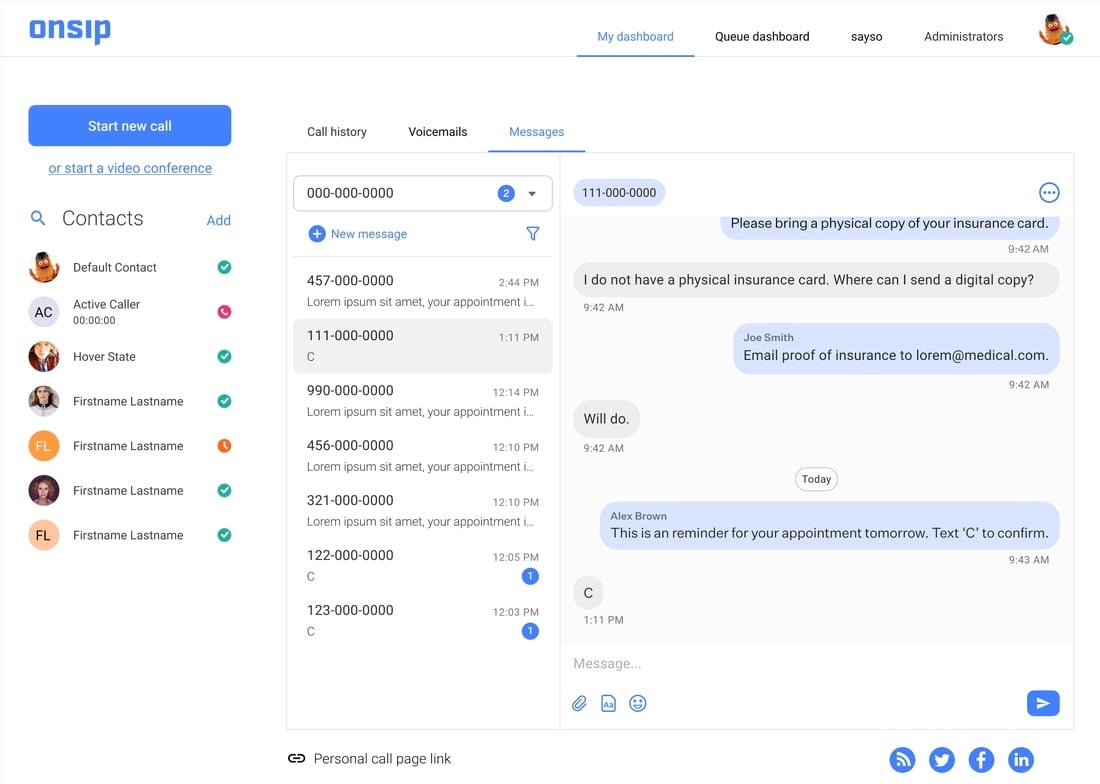
If your account has business SMS enabled, the OnSIP app's Messages section handles all of your business texting needs. Start a new conversation with any 10-digit phone number or search for an existing contact by name or number. New message indicators flag texts that need your attention, so no text will slip through the cracks.
The conversation view (message box) displays sent and received text messages and flags messages that could not be delivered. Users can also attach supported files, images, or videos (MMS messaging) to their texts by selecting the paperclip icon underneath the message box. Additional options let you call the recipient, mark a conversation as unread, or download the text conversation history as a PDF.
6. Video Meetings without Another App to Install
The OnSIP app provides built-in video conferencing for small group meetings. OnSIP users can join through their own web or desktop apps, while customers and other external guests can participate through a unique conference link using a supported browser—without downloading software or installing a plugin.
Participants can mute their audio, pause their video, adjust the volume, or place themselves on hold during the meeting. This makes video conferencing a convenient option for team discussions, customer conversations, and other group meetings without requiring a separate conferencing platform.
7. Transfer Calls with a Drag and Drop—No Extensions, No PINs
When you want to transfer a call to a colleague in the web or desktop app, just click on the active call on the left sidebar and drag and drop it onto their name in the Contacts list. This action performs an unattended (‘blind’) transfer of the call to your colleague, no dialing or PINs needed. If you wish to send a call via an attended transfer, click on the opposite facing arrows button on the active call screen and you are presented with the option to make an attended call transfer.
8. Dark Mode: An App Interface that’s Easier on Your Eyes, Day or Night
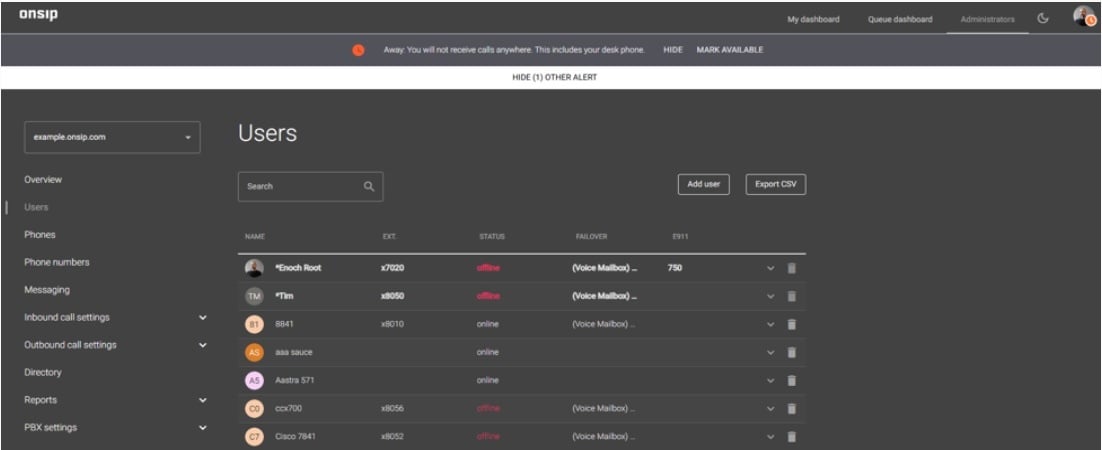
Dark Mode gives users a more comfortable viewing option, particularly in dimly lit workspaces or during extended periods at the computer. Its dark background and light text can reduce screen glare while keeping important app controls clearly visible.
App users can choose between Dark Mode, Light Mode, or Use System, which automatically matches the device’s display setting. Each option provides the same features and functionality, allowing employees to select the appearance that best suits their workspaces and personal preferences.
Explore More Business Communication Tools in the OnSIP App
The OnSIP softphone app puts day-to-day workplace communication features into one convenient dashboard. Using these features will reduce the need to switch between separate applications, give employees greater flexibility in how they work, and create an app experience that better fits their preferences.
The app can also provide greater visibility into your company’s inbound calls. With the Enhanced Queue Dashboard (also found in the OnSIP app interface), supervisors can monitor waiting calls, agent availability, wait times, and queue performance in real time. Learn more about the dashboard and other advanced capabilities found within our add-on Enhanced Queues call feature.