


Summary
| Overall: |  |
| Configuration: |  |
| OnSIP Testing: | |
| Voice Quality: | |
| Ease of Use: | |
Note: The Polycom Soundstation IP 6000 and 5000 were discontinued in 2020 with the introduction of the Polycom Trio.
The Polycom Soundstation IP 6000 and IP 7000 VoIP conference phones were first introduced back in 2008 to replace the aging IP 4000 model. Earlier this year, the more petite IP 5000 was released for smaller conference rooms and executive offices. Together, these three models make up all of the currently available SIP VoIP hardware in the company’s long-running Soundstation series, a line of conferencing products that goes back to the company’s beginnings in the early 1990s. If you’ve ever wondered why we say Polycom speakerphones are a cut above the rest, now you know—they’ve been perfecting it for almost 20 years!
Here we’re going to focus on the model in the middle of the pack: the Soundstation IP 6000.
First Impressions of the Polycom Conference Phone
The Polycom IP 6000 looks almost identical to the older IP 4000 model, a phone that was released almost ten years ago. We would have much rather preferred the redesign given to some of the other Soundstation phones—the IP 5000 and IP 7000 look sleek! The IP 6000 closely resembles a tripod, with a microphone at each of the three endpoints to ensure equal sensitivity to sound input from all directions (~4m microphone pickup range). A large speaker sits at the top for the ringer and audio output. The IP 6000 has three large LED indicators that form a triangle around the central speaker. These switch from solid to flashing states of red and green depending on the status of a call.
At the front is the phone console that contains the primary key buttons (standard keypad), control keys, indicators, and a high-resolution LCD graphic display. The IP 6000 measures about a foot across and ~15 inches deep. It’s more or less the same width across as a Polycom 550/650 but about twice as long. Underneath the phone is a LAN jack for power and two microphone connectors for optional extension microphones.
Unlike Polycom desk phones, the IP 6000 supports only one line appearance or registration but can handle up to eight simultaneous calls and conference calls if needed (one active and seven on hold, obviously). We’re not sure when you would ever find yourself jumping through eight different conferences in one sitting, but the IP 6000 gives you that option.
Polycom IP 6000 Configuration
The first thing you need to do is power the thing up. You won’t find anything other than a LAN jack on the Soundstation IP 6000. This conference phone uses PoE (power over Ethernet) as the default connection, which means that if for some reason you can’t use PoE, you’ll need the AC Power Kit. This optional kit includes a power adapter, a regional power cord, and a power insertion cable. (Yes, you need all three.)
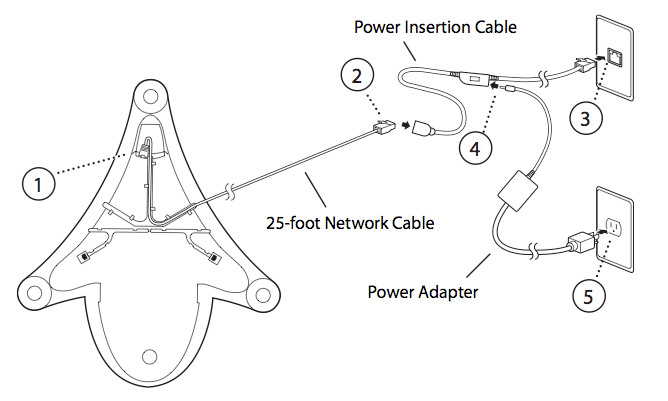
If you have any experience provisioning a Polycom desk phone, then getting the Polycom IP 6000 set up will be nothing new to you. For OnSIP customers, we recommend using our boot server. The following steps will walk through how to give the phone its own number and how to set up a conference bridge so that you can conference with two or more parties.
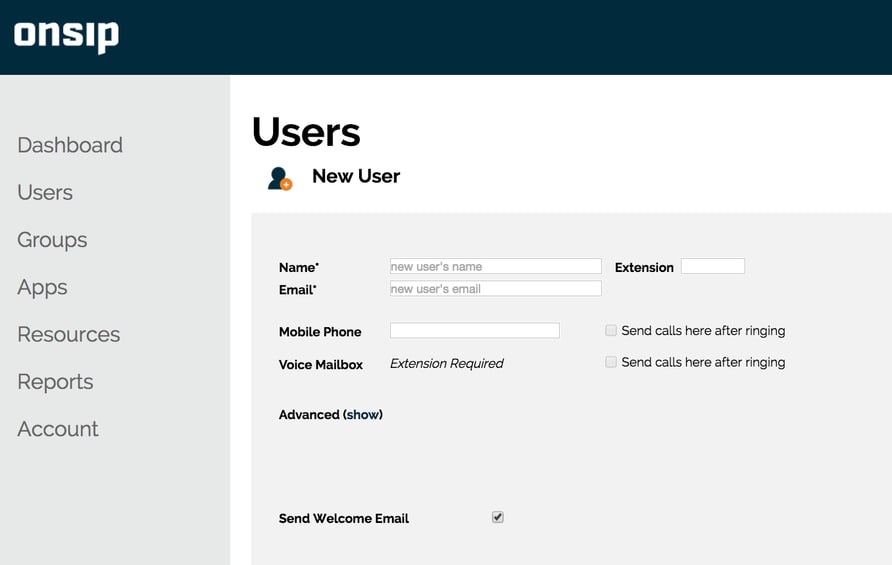
First, create a new conference “user” in your OnSIP Admin Portal. You can name it anything you want. You do not need to worry about what the assigned email address is since this user is not actually going to be assigned to any member of your organization. Example:
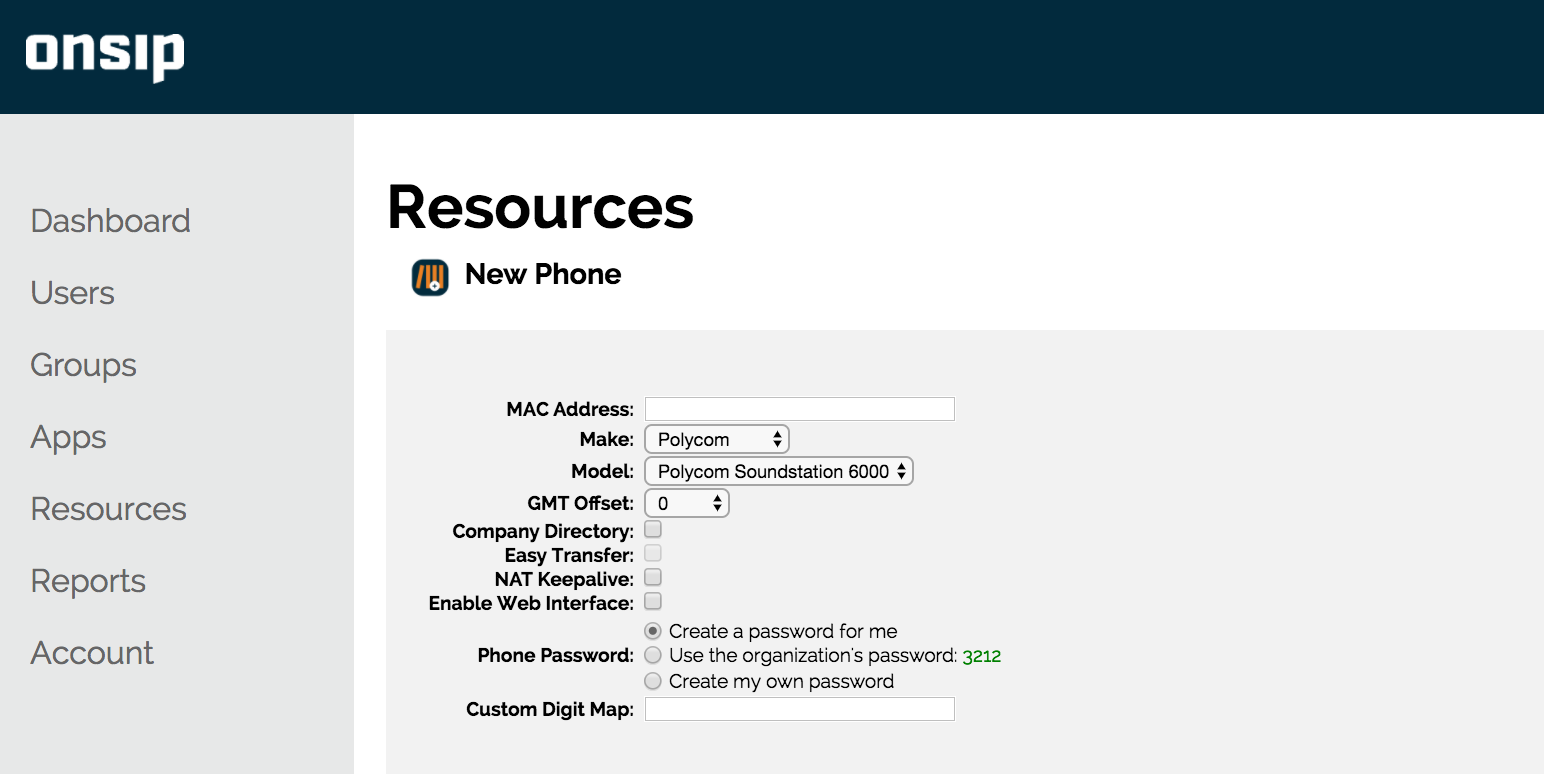
Next, look underneath your IP 6000 and take down the MAC address of the phone. It should start with “0004” and consist of a total of 12 digits. Go into your OnSIP Admin Portal and click on “Resources." Create a new “Phone” resource. Input the MAC address you just recorded and all other necessary information. For Line 1, select the conference user you just created. Be sure to click Save.
The following step is to let your Soundstation IP 6000 know that it should be using the OnSIP Polycom boot server. You can do this right on your phone. Hit the menu hard key on your conference phone console. Select settings > advanced. You will be asked for a password. The default password is “456.” Next, select admin settings > network configuration. Scroll down until you see server menu. You want to change “server type” to “HTTP” and “server address” to “boot.onsip.com.” All you have to do now is reboot the phone. Polycom phones usually take a while to reboot, especially if the firmware version has to be upgraded. Rebooting can take up to 30 minutes, so go do something else while you wait.
If you’re planning to hold conferences with more than two parties, you’ll need a conference bridge. There are plenty of options to choose from. Shameless plug: If you happen to be an OnSIP customer, we highly recommend trying out our HD conference suites. Instructions on how to set that up can be found here.
Compatibility Testing
At OnSIP, we put each of the phones we use through a multi-step interoperability test in which we apply ~30 test cases. Here’s an example of a test case:
Test phone calls phone B
B picks up
B puts test phone on hold
B calls phone C
C picks up
B transfers test phone to CThe call must be transferred correctly to C. B must be released correctly after the transfer. When C picks up, audio must work both ways between test phone and C. When the test phone is on hold, there is no audio between it and phone B.
The Polycom SoundStation IP 6000 passed all of the relevant test cases in our interoperability test with no issues.
Voice Quality
We think you’ll agree when we say that the real measure of a phone like this is how it sounds. For example, how easy is it to distinguish between the voices of 20+ people scattered across the country? Polycom has you covered. Conference calls on the Soundstation IP 6000 sound nothing short of amazing. Like all of Polycom’s updated IP phones, the IP 6000 features HD Voice and the company’s Acoustic Clarity technology. Polycom boasts that the IP 6000 allows for high-fidelity calls at up to 14 kHz.
Because many of the employees here at OnSIP either work from home or from remote offices, our Friday conference calls are one of the only times all of us regularly get together. We have been using an IP 6000 for these weekly company-wide meetings for as long as we can remember, and the quality has always been excellent. Our off-site coworkers using G.722-capable phones sound like they are in the room with us. (Some of us have actually been fooled before into thinking that they were in the office by this phone.) Calls coming in from the PSTN don’t sound quite as amazing, but the voice quality is still very good.
Ease of Use
We found the Soundstation IP 6000 to be incredibly user friendly. To be honest, though, we’ve really only used this phone during conference calls; features like custom web applications remain mostly uncharted territory.
The phone console includes a fairly standard phone UI with dedicated hard keys for functions like mute and redial. Some of the hard key functions change depending on the status of the phone. For example, when the phone is idle, the up arrow button next to the select key takes the user to a speed dial list while the down arrow button takes the user to missed calls. During a single call, these buttons don’t do anything at all, but when there are two or more simultaneous calls taking place, these buttons can be used to cycle through the list of ongoing conversations. Other standard call-handling options (hold, forward/transfer) show up during the call as soft key options. The Soundstation IP 6000 includes almost all the functionality of a Polycom desk phone. Call handling options like attended and blind transferring and features like do not disturb, call forwarding, and company directory lists are included.
The high-res LCD graphic display on the phone console makes navigating through the menus painless. Like other Polycom phones we’ve tested, an animated HD icon will appear on the display screen during wideband calls.
Final Thoughts on the Polycom IP 6000
The Soundstation IP 6000 is a fantastic conference phone that delivers excellent audio performance. We’ve been using it ourselves for the past couple of years and are convinced that it would make a great addition to any medium-sized conference room.